

If you’ve ever lost a phone, had a laptop die suddenly, or accidentally deleted a folder, you know that horrible feeling:
“All my photos and files are gone…”
The good news is that you can easily protect your memories and important documents using something called cloud storage—even if you’re not very technical.

In this simple guide, we’ll cover:
- What cloud storage actually is (in normal language)
- Why you should use it
- The most common services (Google Drive, iCloud, OneDrive, Dropbox, etc.)
- How to back up your phone photos automatically
- How to back up important documents and files
- Basic safety and privacy tips
1. What Is Cloud Storage?
Imagine you have a special online locker where you can store your photos, videos, and files.
- This locker lives on big, secure computers owned by companies like Google, Apple, Microsoft, or Dropbox.
- You can open this locker from any device: phone, laptop, tablet—just by logging in with your account.
- If your phone breaks or your laptop is stolen, your files are still safe in the cloud.
That’s all cloud storage is:
A safe place on the internet to keep copies of your important stuff.
2. Why You Should Care (Even If Your Phone “Feels Safe”)
You might think:
“My phone is fine, I don’t need backups.”
But things happen:
- Phone falls in water
- Device gets stolen or lost
- Hard drive suddenly dies
- Files get corrupted or deleted by mistake
Without a backup, you can lose:
- Travel photos
- Family pictures
- Work or school documents
- ID scans and important paperwork
- Creative work (designs, videos, writing)
With cloud storage:
- Your files are backed up automatically (if you set it up once)
- You can switch to a new phone without losing your memories
- You can access your files from anywhere with internet

3. Popular Cloud Storage Options (In Simple Terms)
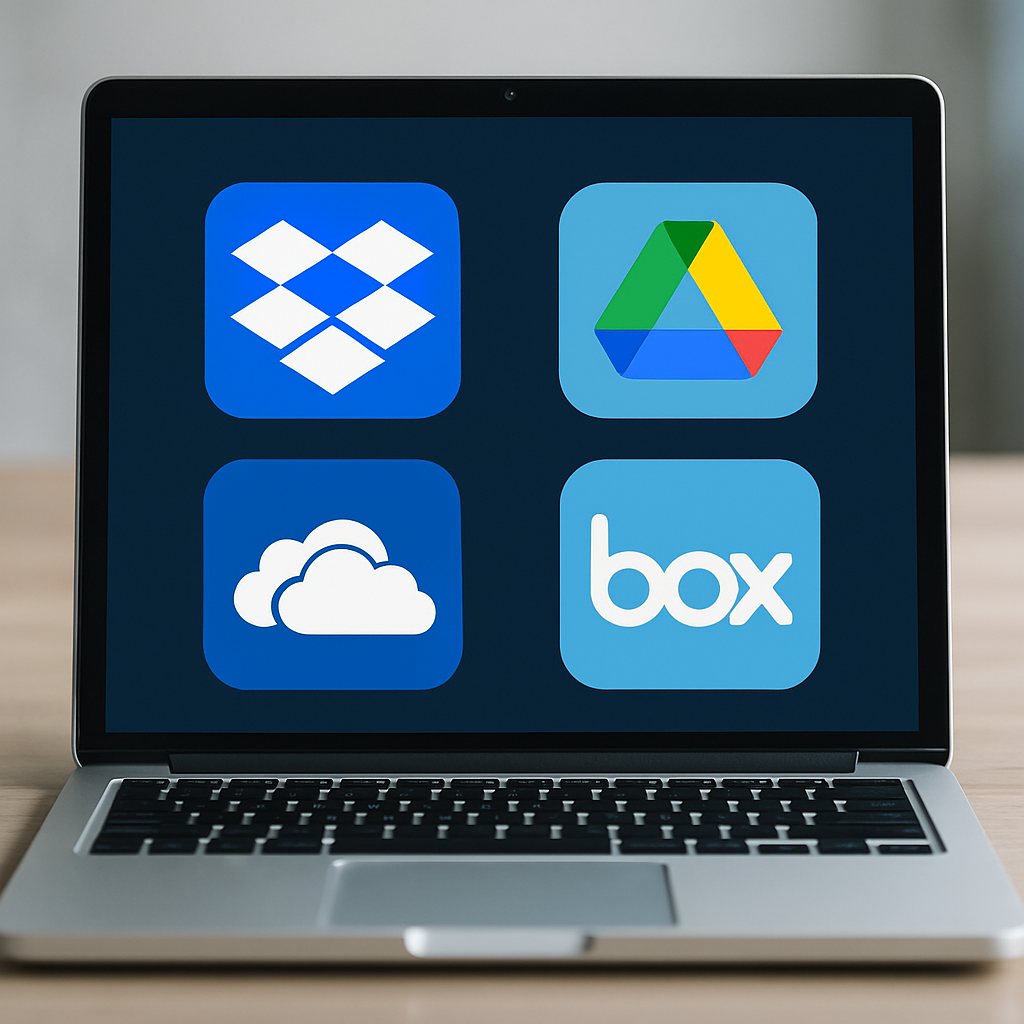
Here are some of the most common services:
Google Drive / Google Photos
- Works well on Android and also on iPhone/iPad and computers
- Good for documents, photos, and backups
- Linked to your Google account (Gmail)
Apple iCloud
- Built into iPhones, iPads, and MacBooks
- Backs up photos, messages, and more
- Linked to your Apple ID
Microsoft OneDrive
- Good if you use Windows and Microsoft Office (Word, Excel, etc.)
- Comes built‑in with many Windows PCs
Dropbox
- Simple and popular for storing and sharing files
- Works across all major platforms (Windows, Mac, Android, iOS)
You don’t have to use all of them.
For most people, one main cloud service is enough.
4. How to Choose the Right Cloud Storage for You
Here’s a simple way to decide:
- If you mainly use Android + Gmail
→ Google Drive / Google Photos is usually best. - If you mainly use iPhone / iPad / Mac
→ iCloud is often the easiest. - If you mostly use a Windows laptop and Microsoft Office
→ OneDrive is very convenient. - If you want a tool just for sharing and storing files across any platform
→ Dropbox is a solid choice.
Don’t stress too much—almost all of them:
- Offer some free storage
- Let you upgrade later if you need more space
5. How to Back Up Your Phone Photos Automatically
Backing up your photos is one of the most important things you can do.
General idea (for both Android and iPhone)
- Choose your cloud app (Google Photos, iCloud Photos, OneDrive, etc.).
- Install/open the app on your phone.
- Sign in with your account (Google, Apple ID, Microsoft, etc.).
- Turn on “Backup” or “Sync” for photos.
- Choose whether to back up using Wi‑Fi only (to save mobile data).
Once this is on:
- New photos and videos will be uploaded automatically to the cloud.
- If you change phones, you just log in again and your photos reappear.
You can also:
- Manually upload special albums
- Delete photos from your phone (after checking they’re safely in the cloud) to free up space
6. How to Back Up Important Documents and Files
Don’t just protect your photos—protect your documents too.
Examples of files to back up:
- ID scans (passport, ID card, driver’s license)
- Travel documents (bookings, visas, insurance)
- Work & school files (projects, reports, notes)
- Financial documents (bills, receipts, statements)
You can:
- Create a folder in your cloud drive like:
Important DocumentsTravelWork/Studies
- Upload files by:
- Using the phone app: tap “+” → Upload file or photo
- Using your computer: open the web version or sync folder, then drag‑and‑drop files

7. Staying Organized in the Cloud
Cloud storage gets messy fast if you just dump everything everywhere.
Simple organization tips:
- Use folders with clear names:
Photos > 2023 > Trip to ___Documents > Personal / Work / School
- Use short, clear file names:
Passport_Scan.pdfResume_Updated.docx
- Delete duplicates and useless files from time to time.
The more organized your cloud is, the easier it is to find what you need in an emergency.
8. Is Cloud Storage Safe? Basic Security Tips
Cloud storage is generally safe if you use it safely.
Follow these simple rules:
- Use strong, unique passwords
- Don’t reuse the same password everywhere.
- Use a mix of letters, numbers, and symbols.
- Consider using a password manager if you can.
- Turn on two‑step verification (2FA)
- This adds an extra code (usually sent to your phone or an app) when you log in.
- Makes it much harder for someone to break into your account.
- Be careful on public Wi‑Fi
- Avoid logging into your cloud account on unknown or shared computers.
- If you must use a public network, log out afterwards.
- Check sharing settings
- When you share a file or folder, decide:
- Can “anyone with the link” see it?
- Or only specific people?
- Don’t share sensitive documents with public links.
- When you share a file or folder, decide:

9. How Much Does Cloud Storage Cost?
Most cloud services give you some free storage (for example a few GB) and then offer paid plans if you need more.
Rough idea:
- Free tier: good for documents + some photos
- Small paid tier: good for many photos and videos
- Larger paid tiers: for people with huge photo libraries or work files
You can start with the free plan, see how fast it fills up, and then decide if it’s worth paying a small amount each month or year.
Final Thoughts
Cloud storage might sound “technical”, but in reality, it’s just:
A safe online place where your memories and important files are stored, so you don’t lose them when something happens to your device.
If you do only one thing after reading this, let it be this:
- Turn on automatic photo backup on your phone
- Create one folder for your most important documents in your chosen cloud
Future you—who doesn’t lose all their photos if their phone breaks—will be very thankful.
Have you already tried any cloud storage service?
Share your experience in the comments—what worked well, and what confused you at first?